Binance API Key Authorization
Why You Need API Key Authorization
Your funds are stored in your exchange account. To automate trading with software, you need to authorize trading permissions to the quantitative trading software. Exchanges currently use API keys for authorization. With this authorization, the quant trading software can only execute trades on your behalf and cannot transfer funds from your account, making this a very secure method of authorization.
Operation Steps
1. Open Binance APP search function
Open the Binance app search function, as shown below:
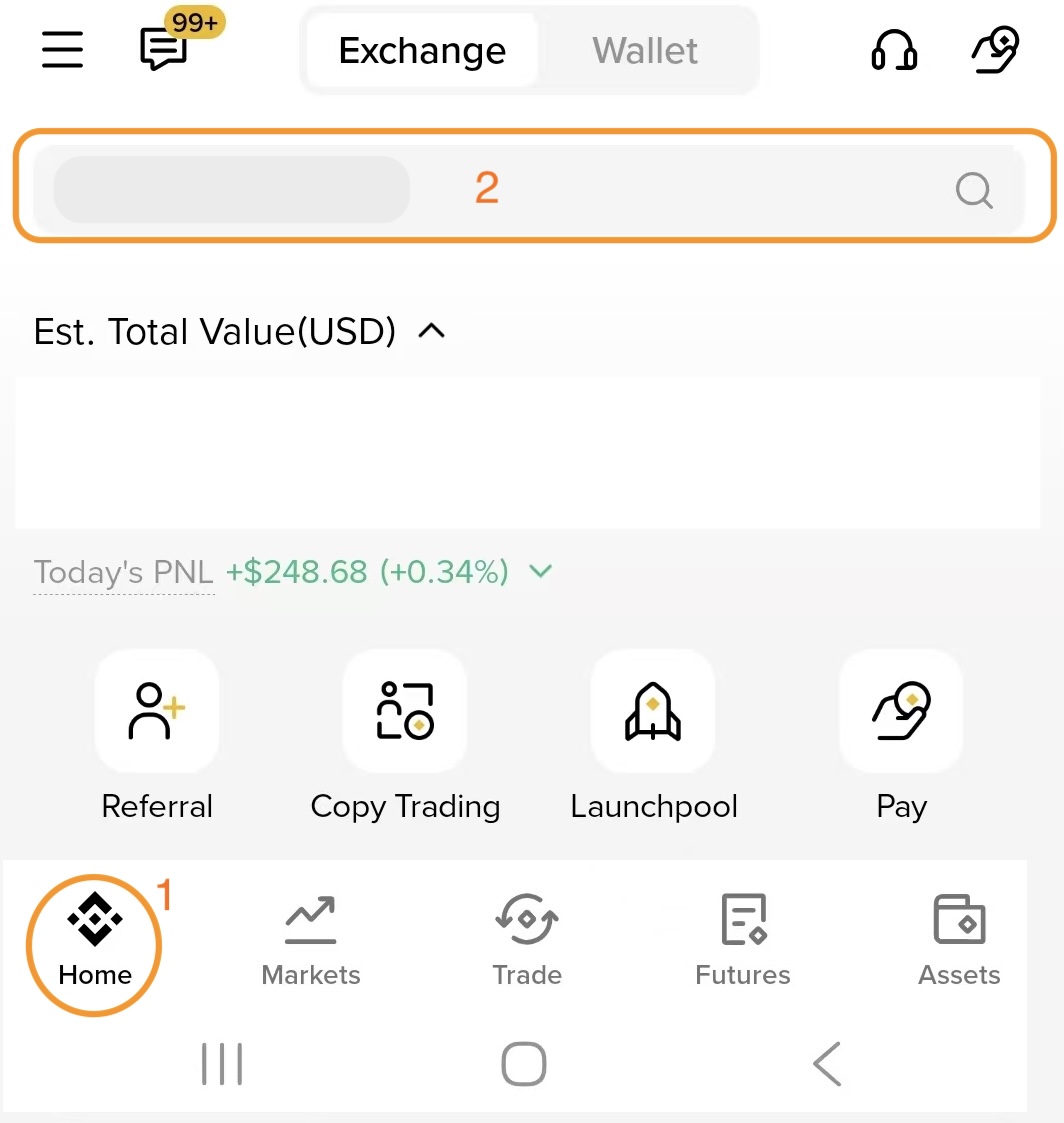
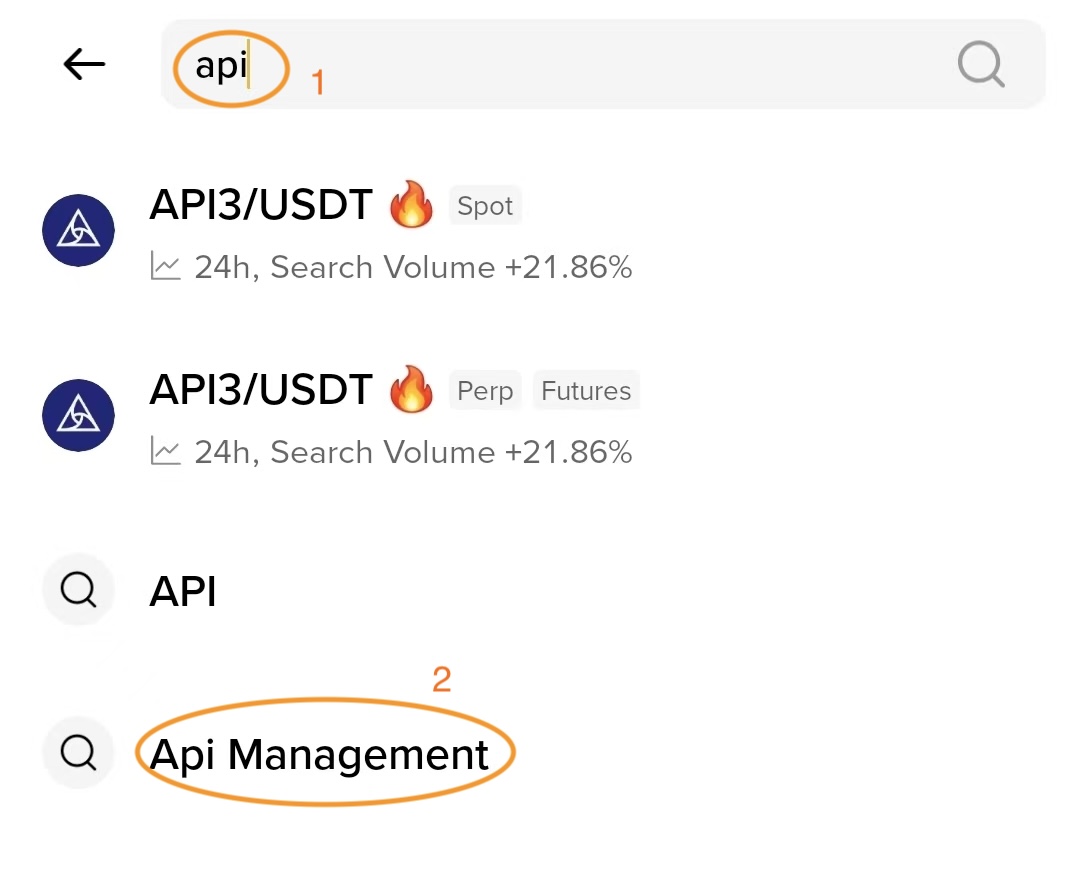
2. Search API Management
Type "api" in the search box, and you'll see the API Management menu. Click to enter:
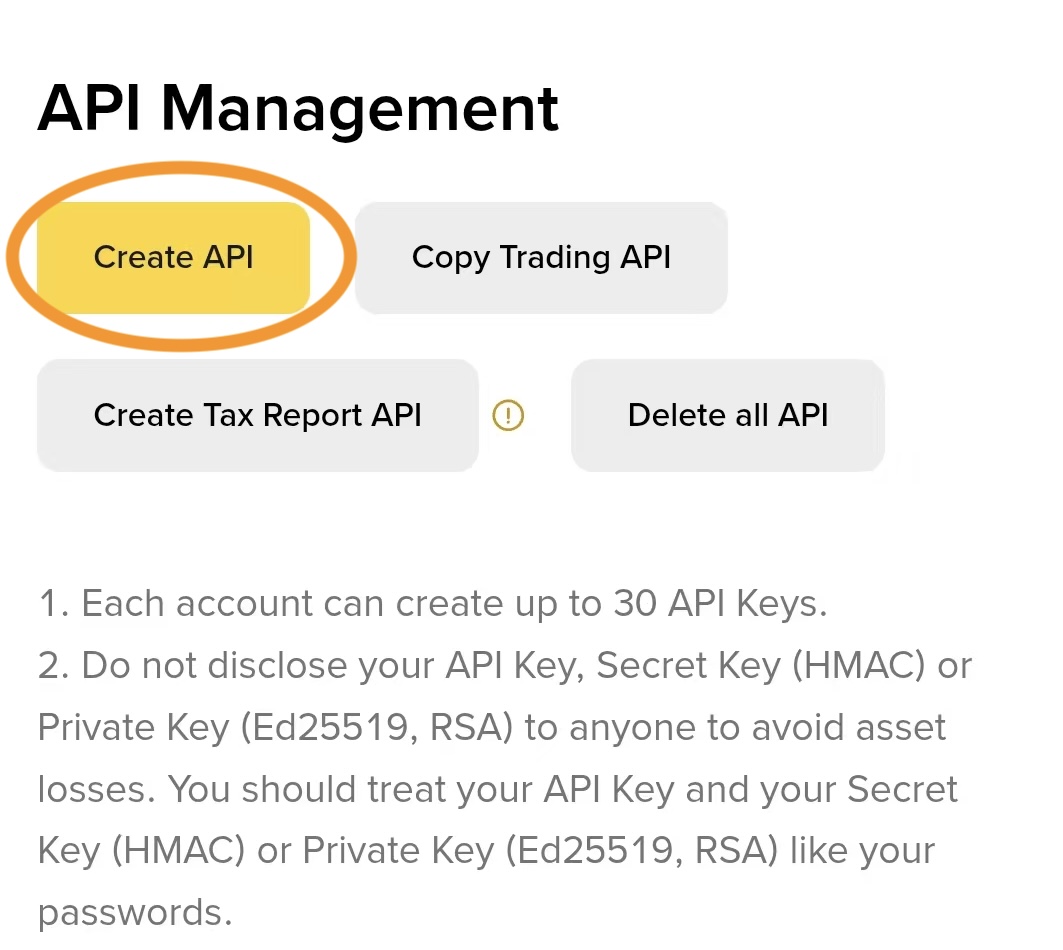
3. Create API
In the API Management page, click Create API:
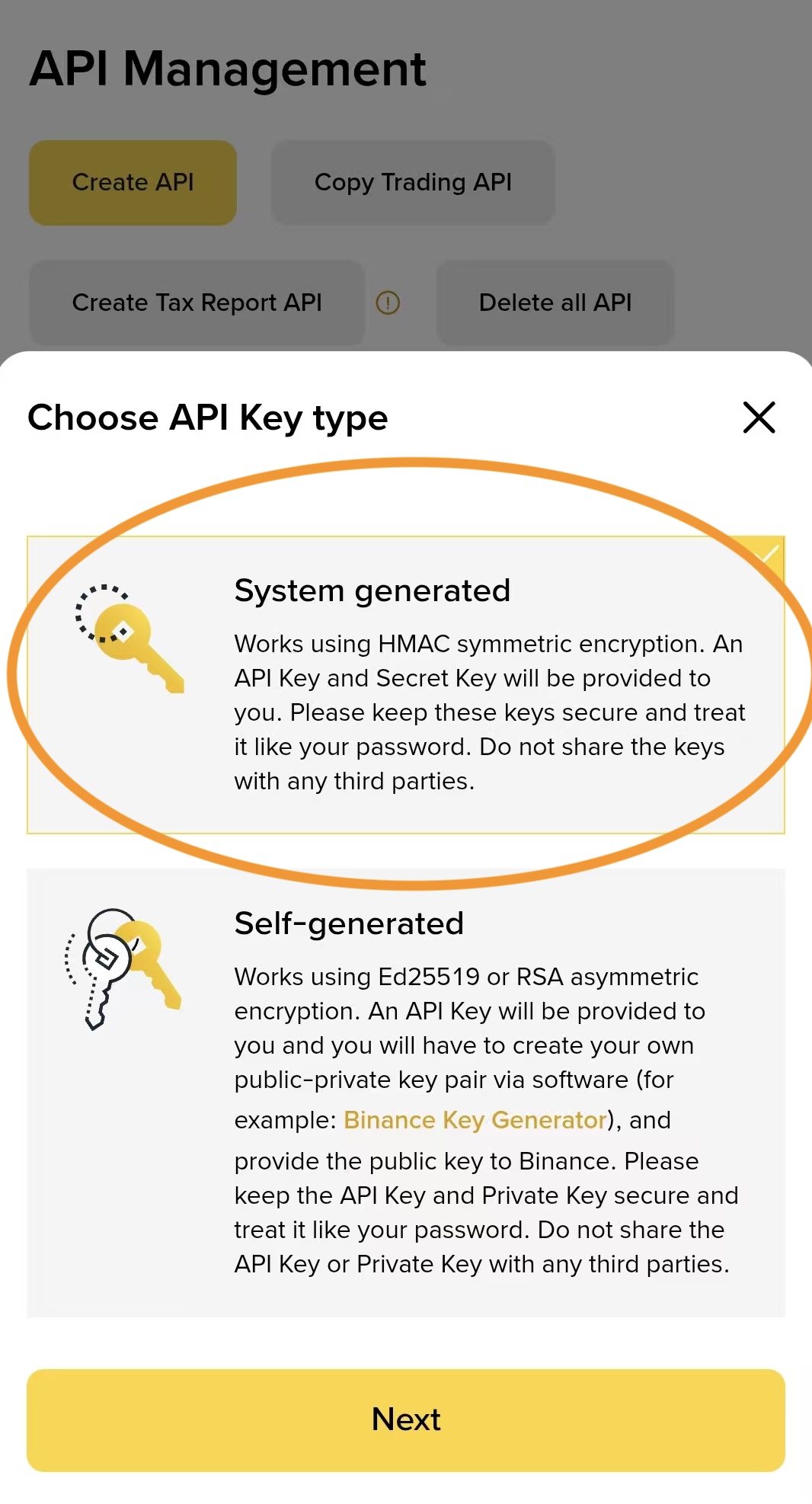
4. Select API Key Type
Select API Key Type System Generated:
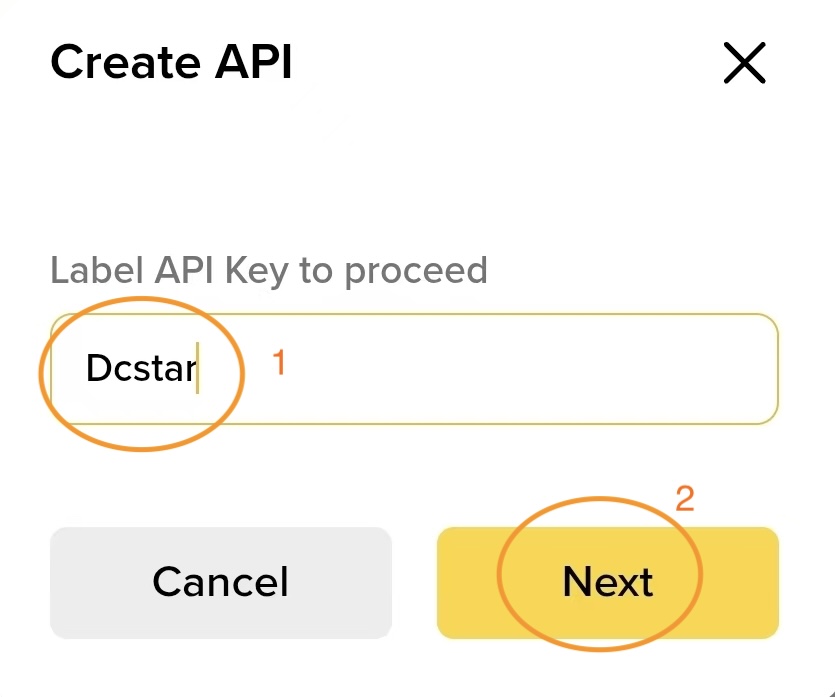
5. Input API Key Label
Enter an API Key Label: Quant (you can choose any name you prefer):
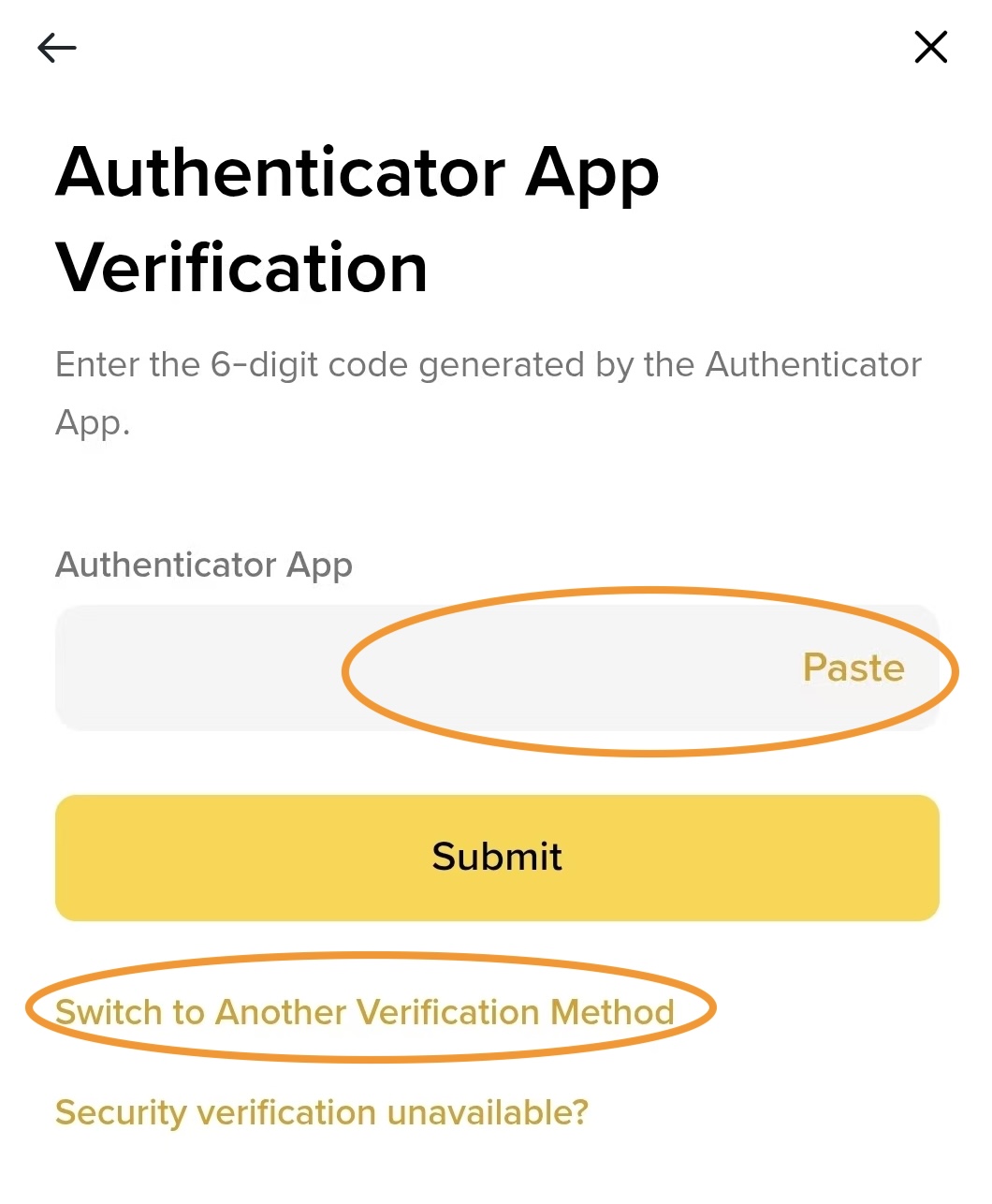
6. Authentication
An Authentication prompt will appear. Open your linked authentication device and enter the verification code. If you haven't linked an authentication device, you can use alternative verification methods:
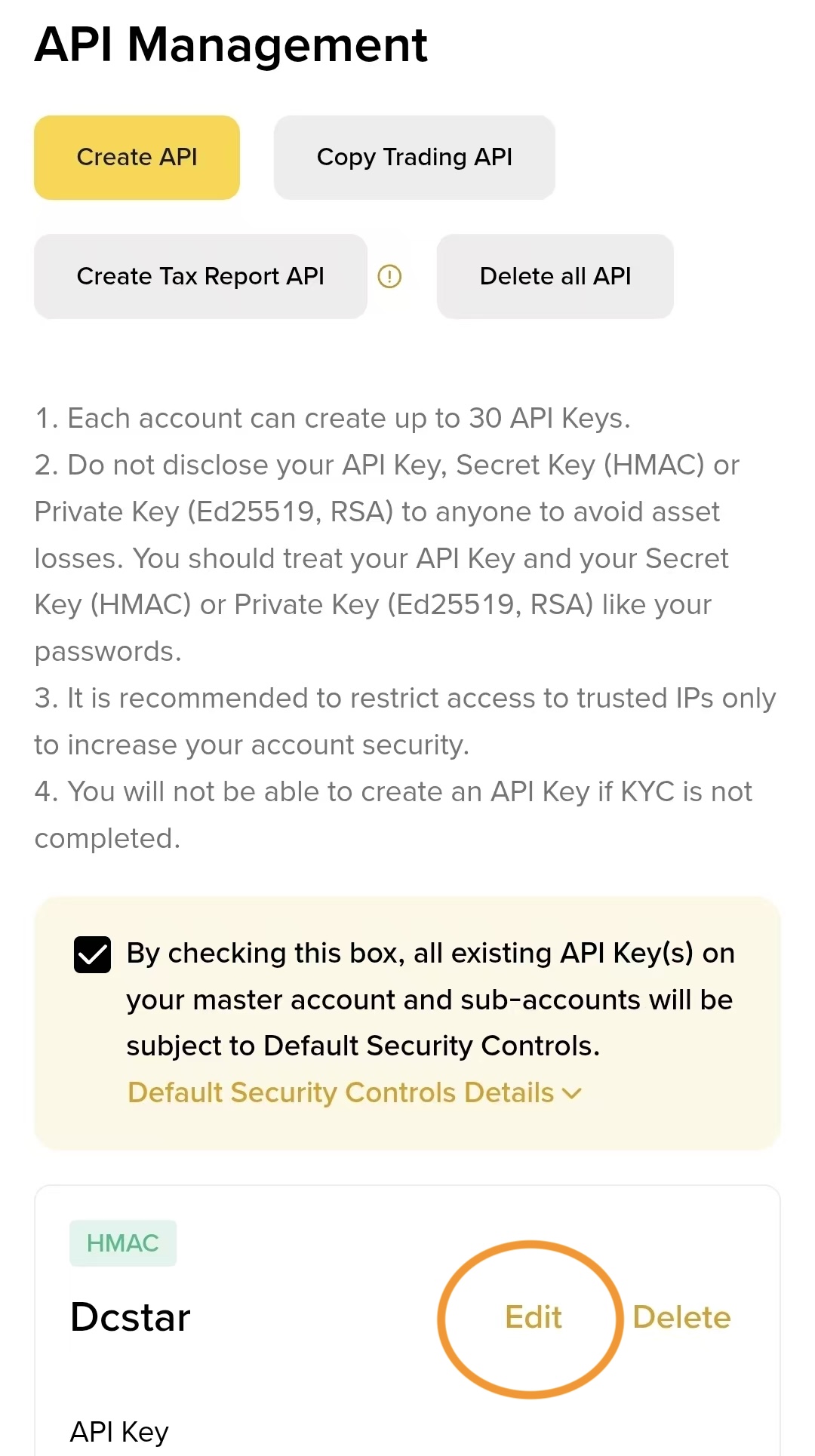
7. Edit Key
After the API key is generated, scroll down and click Edit:
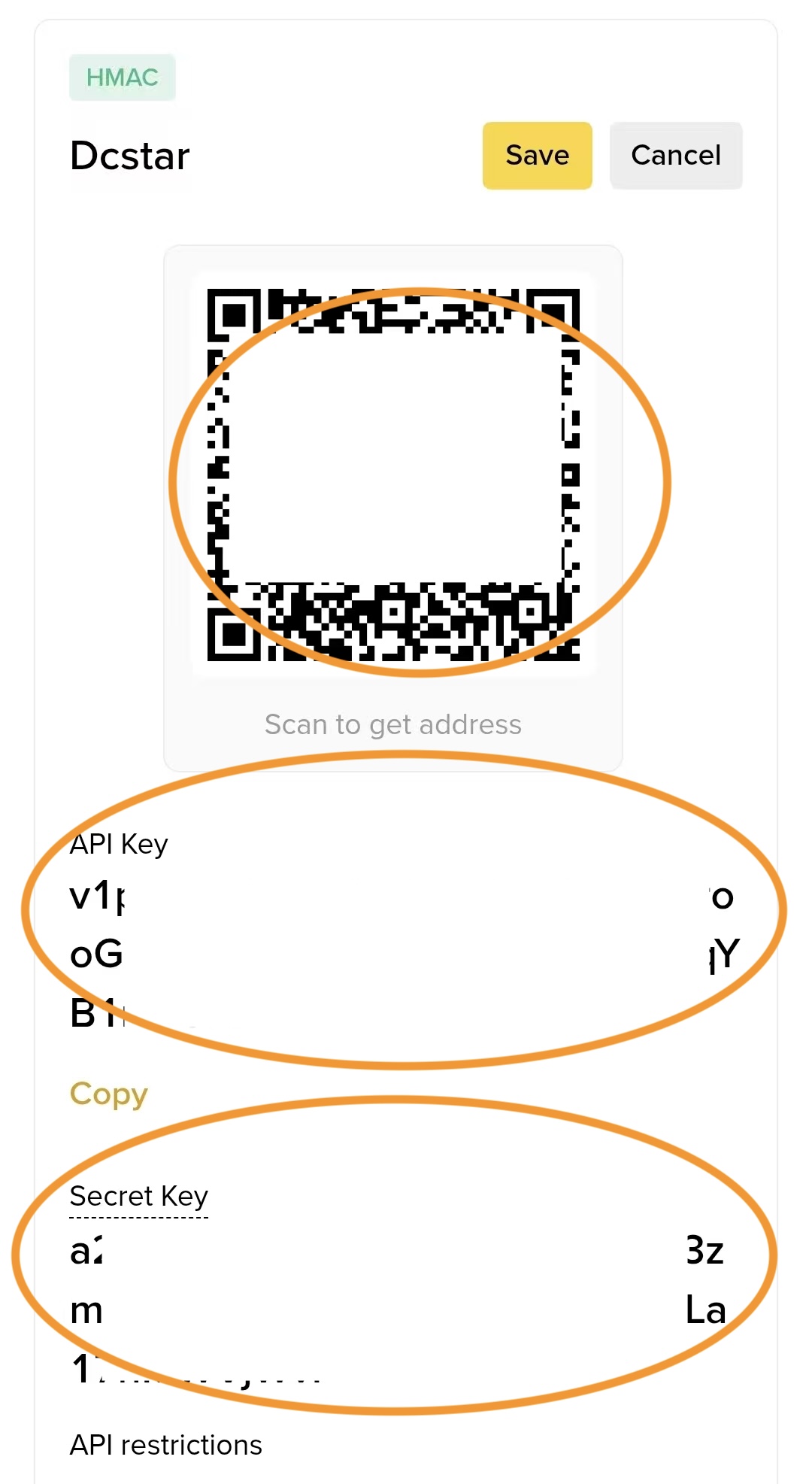
8. Get Key Information
Click Edit to display the key QR code and the values of both keys. Take a screenshot of the QR code, then copy both keys and paste them into a text editor:
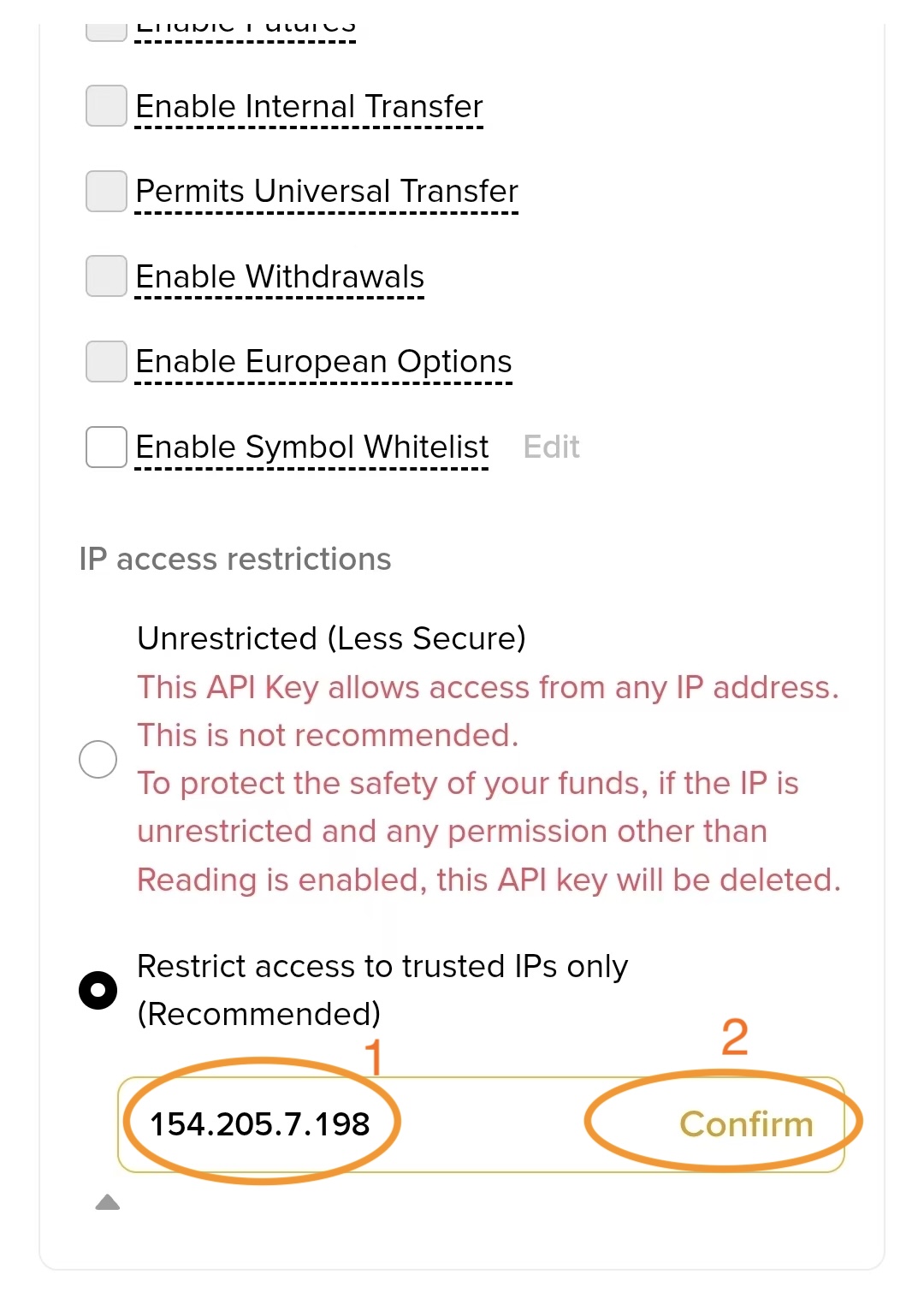
9. Set IP Access Limit
Scroll to the bottom and select Only access trusted IP. The current IP address is 154.205.7.198. If the IP shown in the image differs, use the IP shown in the text as the correct one. Enter the IP address and remember to click Confirm:
10. Set Permissions
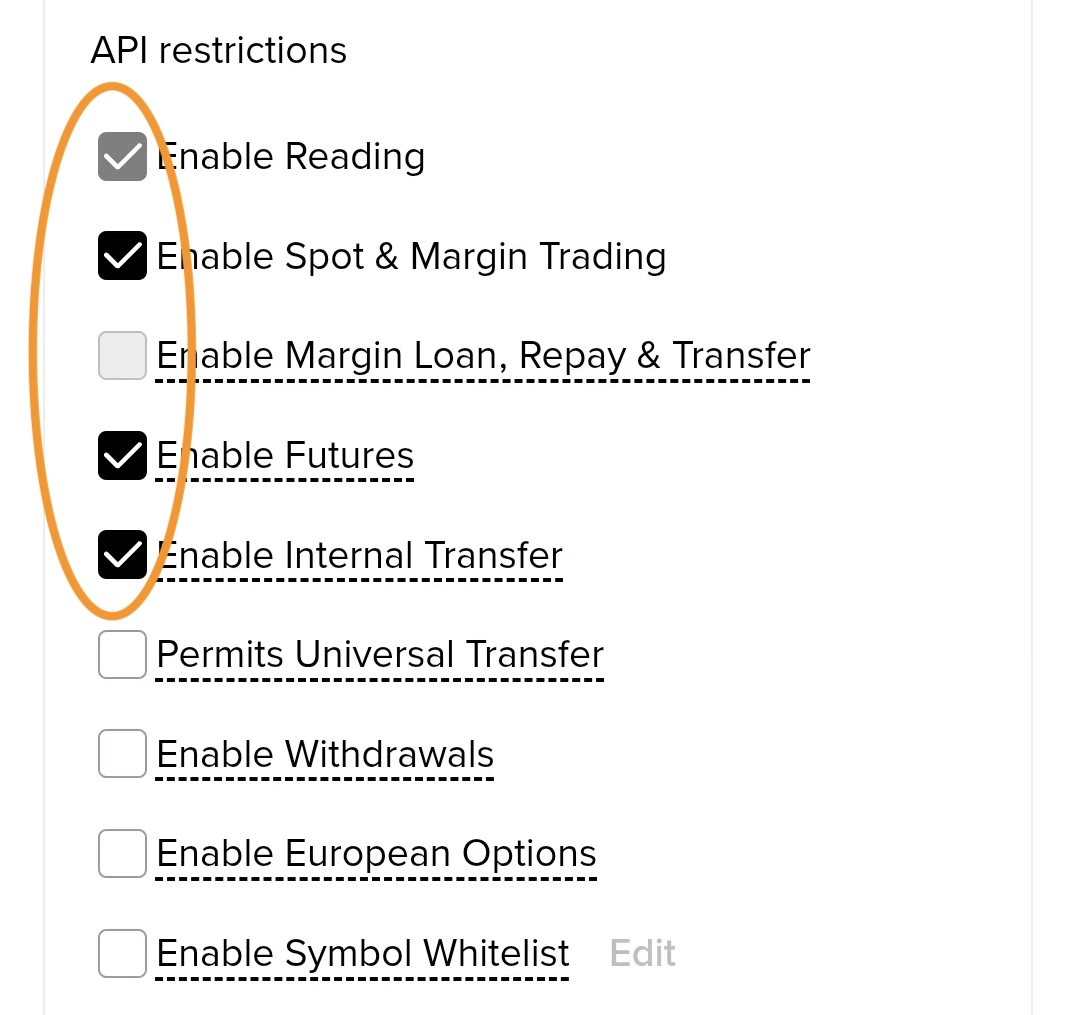
Scroll to the top and check Spot and Margin and Contract. If you haven't enabled contract trading, you won't be able to check this option. In that case, transfer some USDT to your contract account first, which will prompt you to enable contract trading:
11. Save Settings
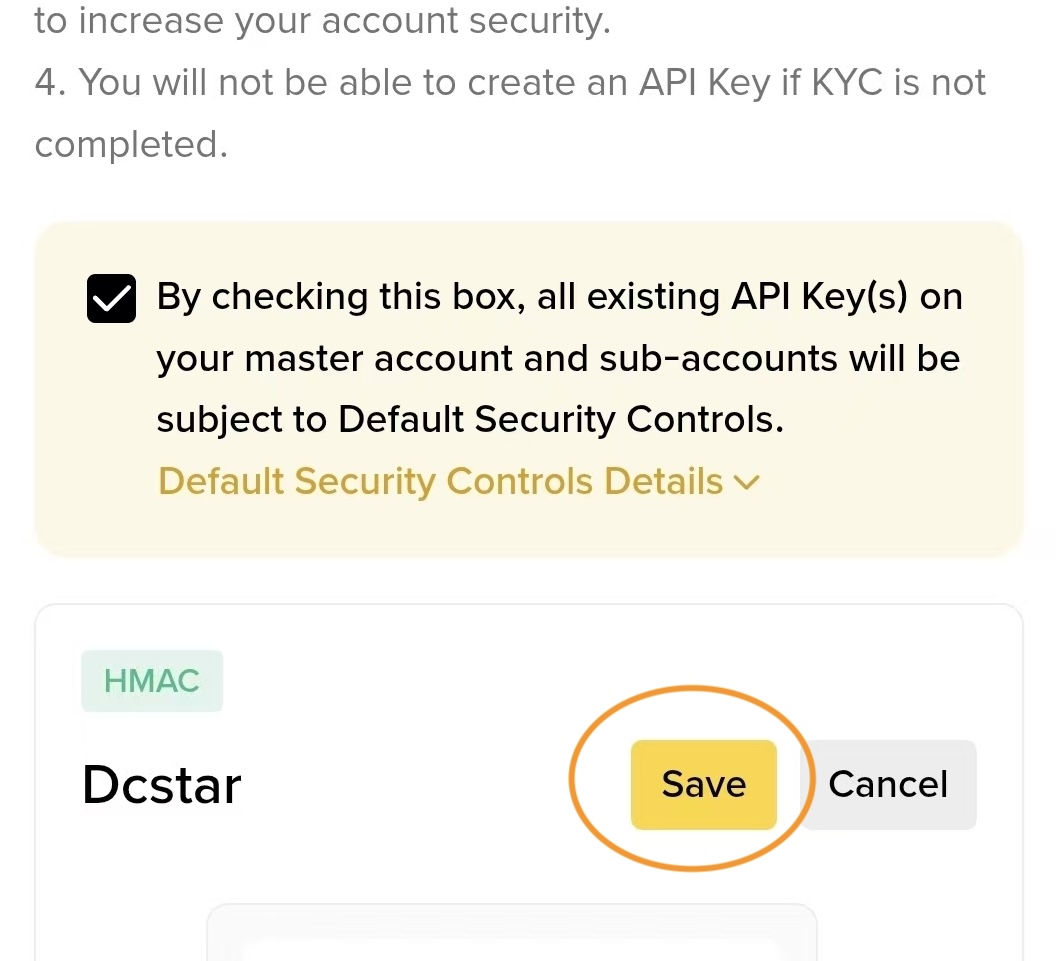
Scroll to the top and click Save. Don't forget this step—many people overlook saving after making changes:
12. Security Authentication
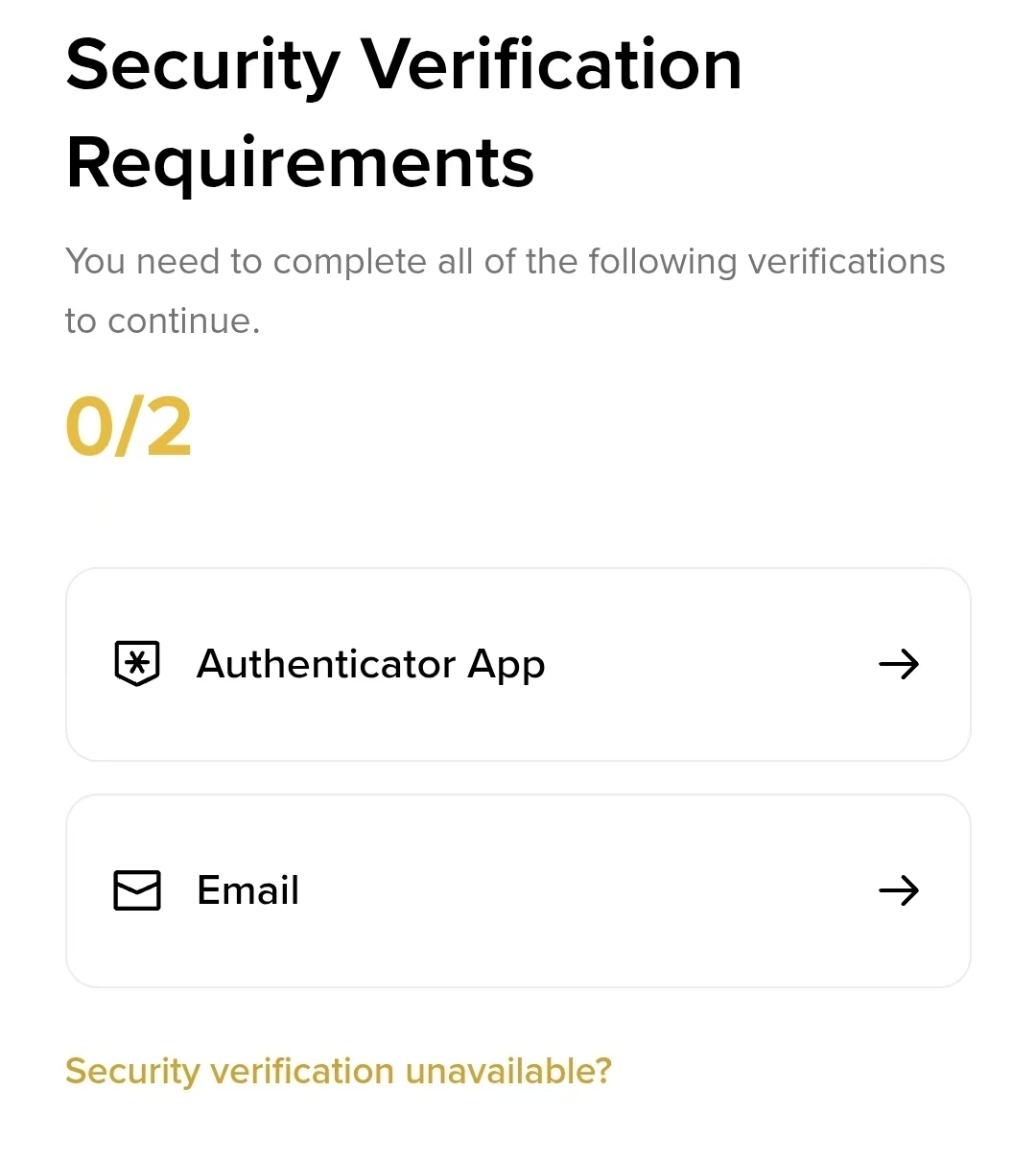
After clicking Save, you'll be prompted for two-step security authentication. Enter the verification code:
Once you've successfully entered the information and saved it, keep both keys safe: the API key and the secret key. You can also save the screenshot of the authorization QR code.
13. In AI Quant APP Configuration
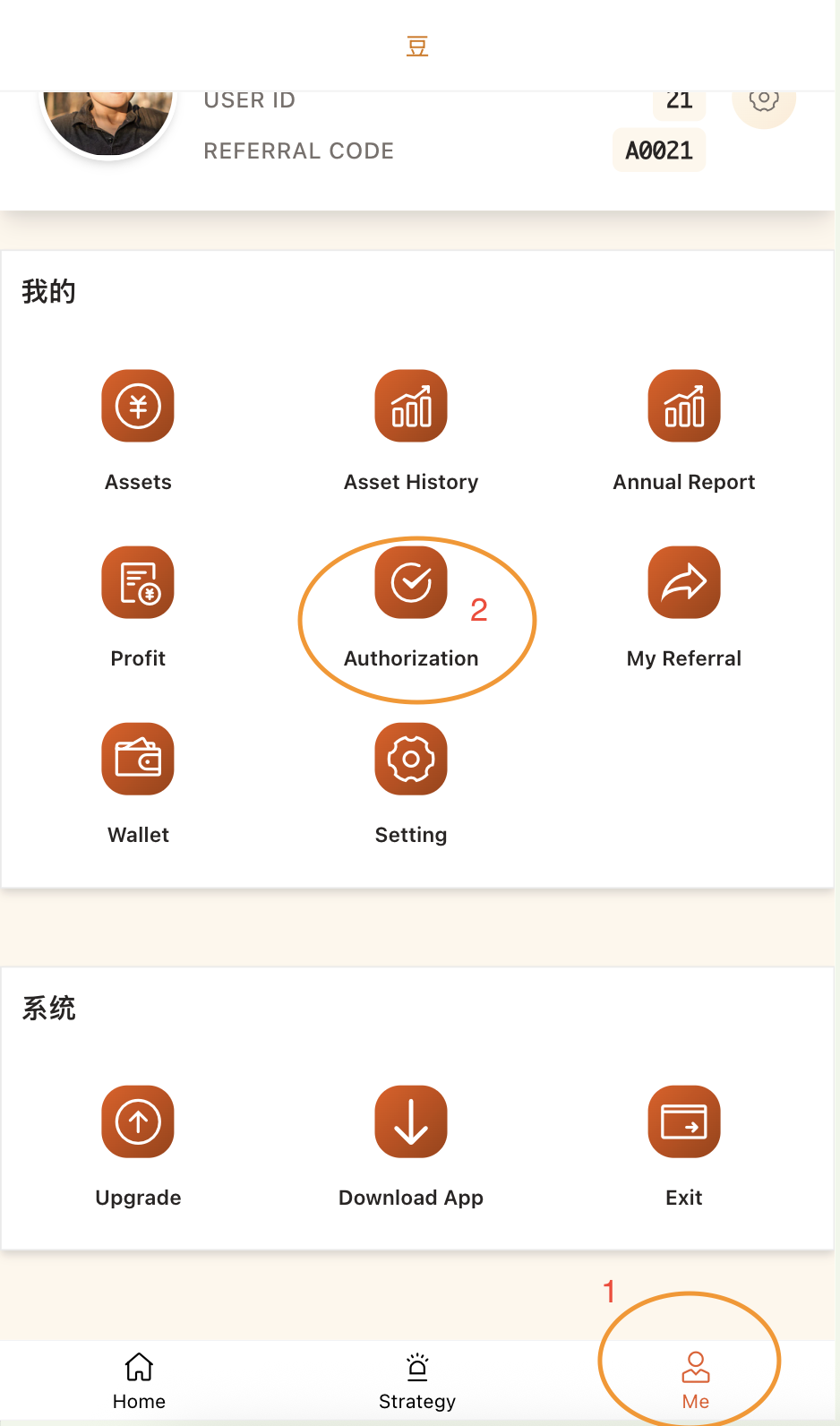
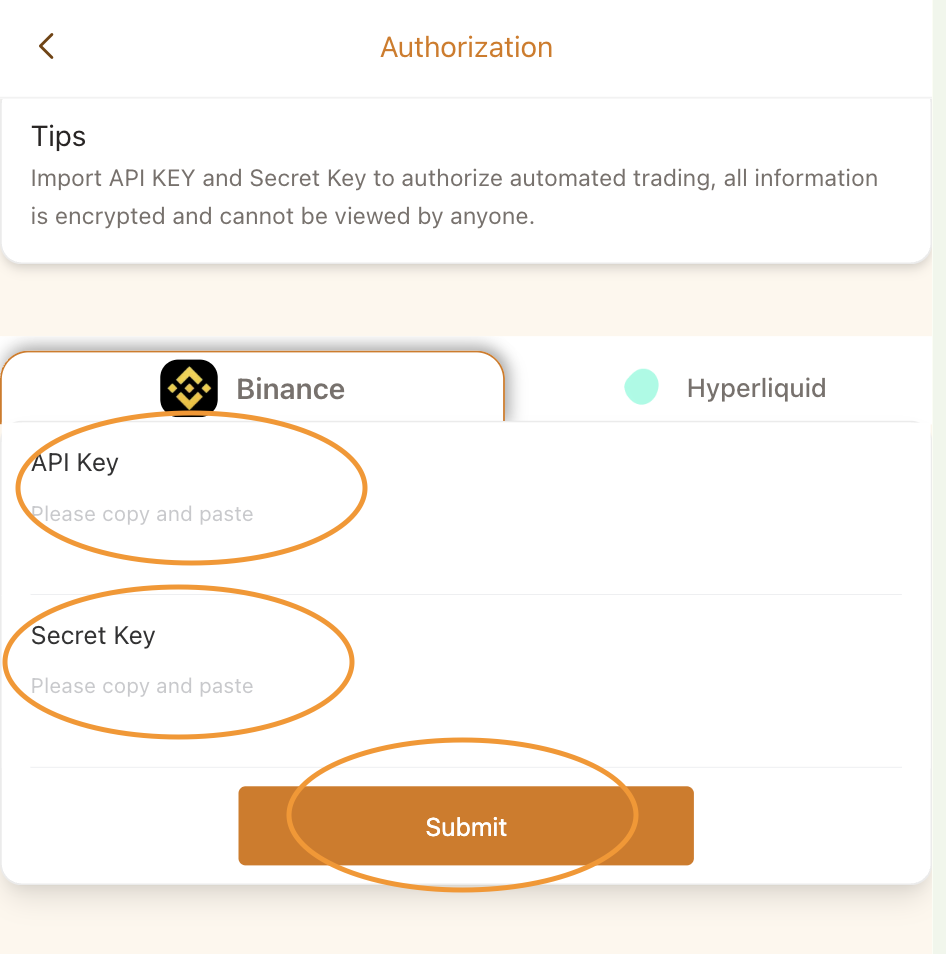
Return to the AI Quant app or website, go to My-Authorization, paste both key values into the input boxes, and submit. This completes the API authorization.
::: Disclaimer This document is a guide for software usage and does not constitute investment advice. All registration, account opening, and trading decisions are made at the user's own discretion and risk. :::